Sending USDT (Tether) is becoming an increasingly popular way to transfer value globally. Whether you're paying for goods and services or sending funds to family or friends, USDT offers stability by being tied to the value of the US dollar.
According to Investopedia, Tether remains one of the most widely used stablecoins, facilitating several transactions daily. If you're using Bitnob to manage your USDT, you'll find that transferring to an external wallet is both easy and secure.
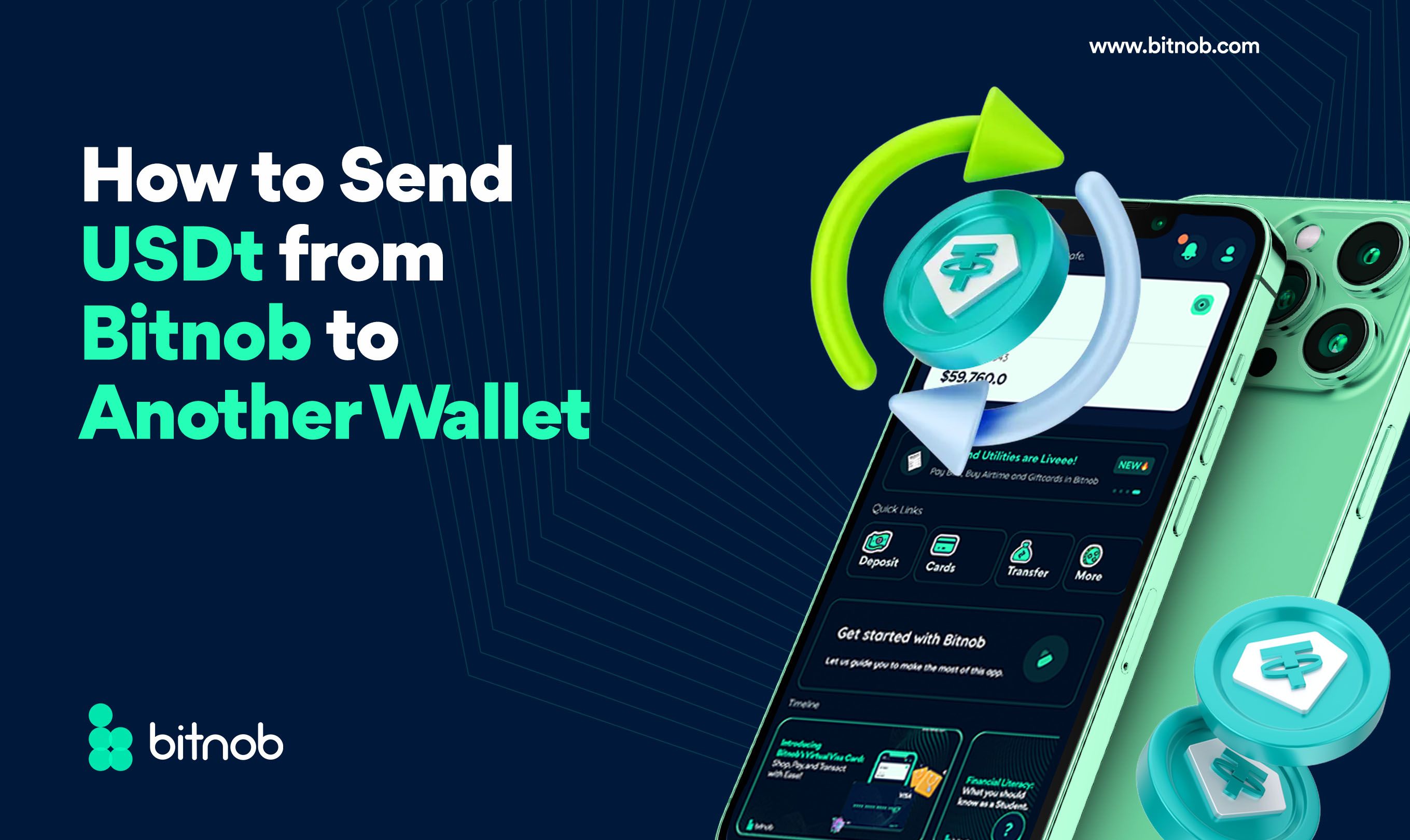
In this guide, we'll walk you through the step-by-step process of sending USDT from the Bitnob app to an external wallet.
What You Need to Know Before Sending USDT
When sending USDT, it's essential to ensure that the external wallet supports the TRC20 network. The TRC20 standard allows for fast and cost-effective transactions on the Tron blockchain, which Bitnob currently supports for USDT transfers. Sending USDT to a non-TRC20 compatible wallet could result in a failed transaction or loss of funds, so always double-check this detail before proceeding.
Step-by-Step Guide: How to Send USDT on the Bitnob App
1. Open the Bitnob App
First, launch the Bitnob app on your mobile device. Make sure you're logged in with your account details.
2. Tap the “Actions” Tab
At the bottom of the home page, you'll find the Actions tab. Tap on it to bring up the available actions you can take within the app.
3. Select “Transfer”
From the quick links section, choose the Transfer option to initiate a transaction.
4. Choose “Transfer as USDT”
Next, you'll be asked what type of transfer you'd like to make. Tap on Transfer as USDT to proceed.
5. Select USDT (TRC20)
You'll now be prompted to choose the network for your USDT transfer. Select USDT (TRC20). Please note that currently, Bitnob supports sending USDT only on the TRC20 network.
6. Enter the Wallet Address
At this stage, you'll need the USDT wallet address of the recipient. You can either scan the wallet's QR code or manually paste the wallet address into the app.
7. Tap “Next”
Once the wallet address is entered correctly, tap Next to continue.
8. Input the Amount You Want to Send
Enter the amount of USDT you'd like to transfer. Ensure that the amount you're sending is correct before moving on to the next step.
9. Confirm the Transaction Details
The app will display a transaction summary, including the wallet address, the network (TRC20), and the amount. Carefully review this information, then tap Proceed if everything looks correct.
10. Enter Your Transaction Pin
For security, you'll need to input your transaction pin to authorize the transfer. Once entered, the transaction will be processed.
11. USDT Successfully Sent!
Once your pin is confirmed, your USDT will be sent to the recipient's external wallet. You’ll receive a confirmation message within the app, ensuring the transfer has been completed.
Things to Keep in Mind
- TRC20 Compatibility: As mentioned earlier, only wallets that support the TRC20 network can receive USDT from Bitnob. Be sure to verify this with the recipient.
- Transaction Fees: Like any blockchain-based transaction, sending USDT on the TRC20 network may incur minor network fees. Using Bitnob to send USDT costs a flat fee of $2. These fees are automatically calculated and displayed before you confirm your transaction.
Sending USDT from Bitnob is quick, secure, and seamless–Just as receiving USDT on Bitnob. Whether using it to settle payments or transfer funds, following these simple steps ensures your USDT reaches the intended wallet without hassle. Download the Bitnob app to get started.